A browser game can feel awkward for several different reasons. Uneven animation, delayed controls and a blurry image are separate symptoms. Identify the symptom before changing settings, and test one change at a time on the same game.
Separate frame pacing from input
If the scenery advances in jumps, the browser may be taking too long to draw a frame. If the picture is smooth but the ship moves late, focus on the input path instead. Bluetooth devices, touch gesture conflicts and a busy page can affect that path. A steady lower frame rate can feel easier to play than a high frame rate that repeatedly stalls.
Try a short session with other heavy tabs closed. Keep the same game and graphics setting while doing it, so that you can tell whether freeing resources changed anything. Restarting everything at once may help, but it gives you less information about the cause.
Use the 3D graphics setting
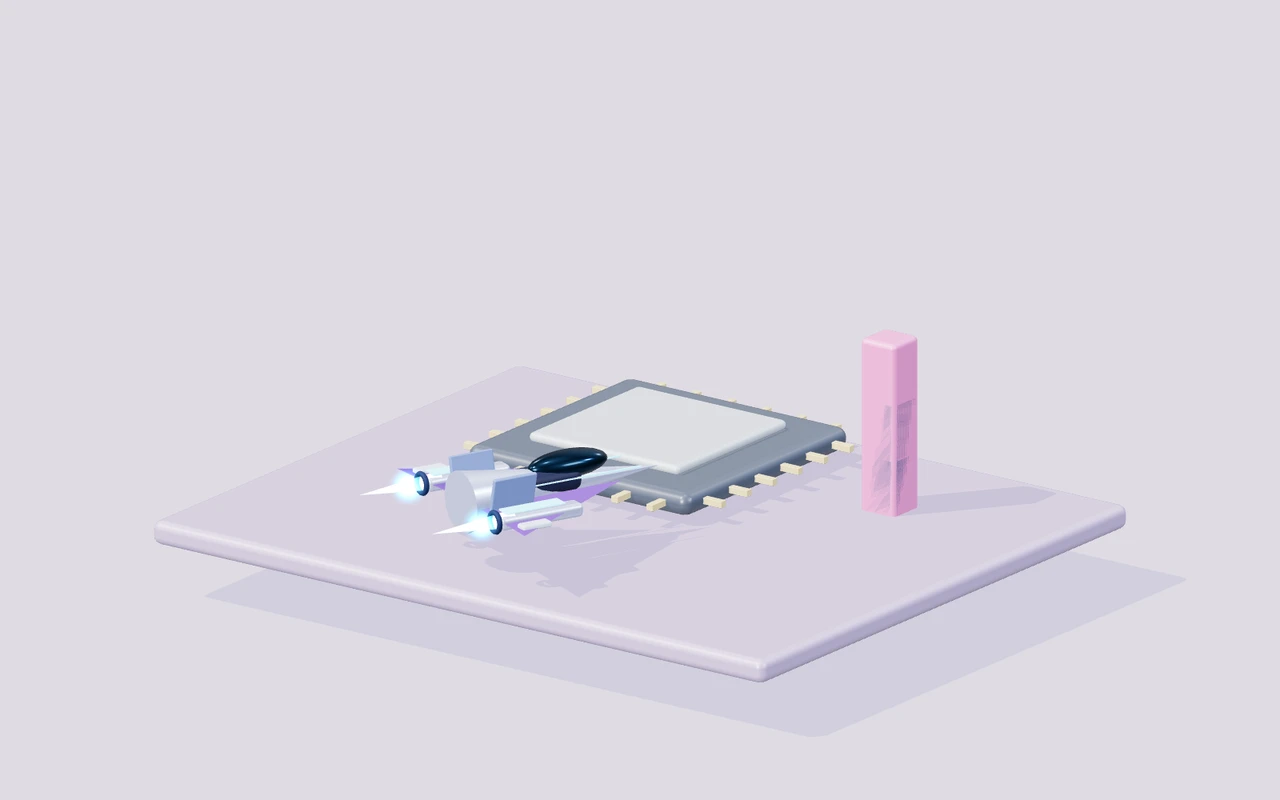
Velocity Coast and Orbit Breaker offer standard and light rendering. Light mode lowers the rendering resolution and shadow work. It keeps the movement, collision rules and score the same, so a run remains comparable. The image may be softer while the controls become more consistent on a modest device.
The 2D games use a high-resolution canvas with a capped pixel ratio. A sharp display still requires drawing work, especially on a phone with many physical pixels. Fullscreen changes the visible size; it does not guarantee a faster frame rate.
Check browser and battery settings
Use an up-to-date browser with hardware acceleration enabled for 3D play. If WebGL is unavailable, the game page explains the problem and links to the 2D collection. A blocked graphics context cannot be repaired by repeatedly pressing Start. Browser support, driver settings or remote-desktop limitations may be involved.
On a phone or laptop, battery-saving modes can reduce performance. Try a brief comparison while connected to power if that is convenient. A warm phone can also slow down during a long session. Take a break and compare again after it cools instead of assuming the game difficulty changed.
Describe a reproducible issue
A useful bug report names the game, browser, device and action immediately before the issue. State whether it happens on every restart or only after several minutes. Include the graphics setting for a 3D game. These details help distinguish a general logic problem from a device-specific rendering limit.
Scores and favourites are stored locally. Private browsing, storage restrictions or clearing site data can remove them. If the game plays correctly but a best score does not persist, that is a storage issue to report separately from frame pacing.
Decisions at a glance
| Symptom | First comparison |
|---|---|
| 3D animation stutters | Switch to light graphics |
| Controls feel delayed | Try keyboard or a direct touch input |
| 3D game reports unavailable | Check WebGL and hardware acceleration |
| Best score disappears | Check private mode and site storage |
YOUR NEXT SESSION
Put it into practice
Run the same 3D game for 30 seconds on standard graphics, then on light graphics. Change no other setting. Compare the consistency of steering and animation rather than the decorative detail.
Play Orbit BreakerFrequently asked questions
Final words
A useful performance adjustment fixes a specific symptom. Keep the comparison small and report the steps that make the issue repeat.
Choose one idea from this article, try it in your next run, and notice what changes. A calmer, repeatable attempt gives you something useful to build on.